Using two-factor authentication
Two-factor authentication (2FA) is a way to protect your Nextcloud account against unauthorized access. It works by requiring two different ‘proofs’ of your identity. For example, something you know (like a password) and something you have like a physical key. Typically, the first factor is a password like you already have and the second can be a text message you receive or a code you generate on your phone or another device (something you have). Nextcloud supports a variety of 2nd factors and more can be added.
Once a two-factor authentication app has been enabled by your administrator, you can enable and configure it in Setting your preferences.
Configuring two-factor authentication
In your personal settings, look up the Second-factor Auth setting. In this example this is TOTP, a Google Authenticator compatible time-based code:
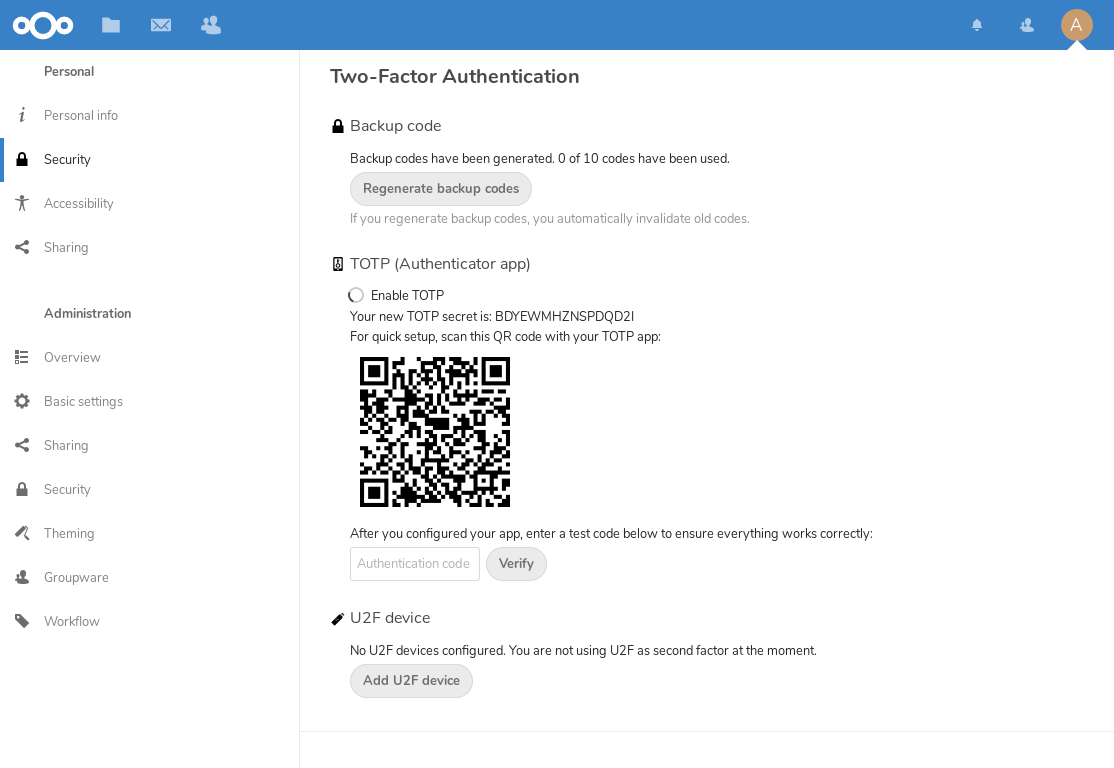
You will see your secret and a QR code which can be scanned by the TOTP app on your phone (or another device). Depending on the app or tool, type in the code or scan the QR and your device will show a login code which changes every 30 seconds.
Recovery codes if you lose your second factor
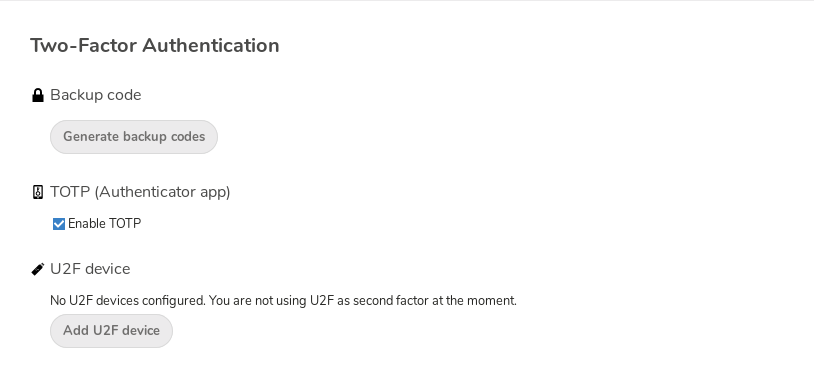
You should always generate backup codes for 2FA. If your second factor device gets stolen or stops working, you can use one of these codes to unlock your account. It effectively functions as a backup second factor. To get the backup codes, go to your personal settings and look under Second-factor Auth settings. Choose Generate backup codes:
You will then see a list of one-time-use backup codes:
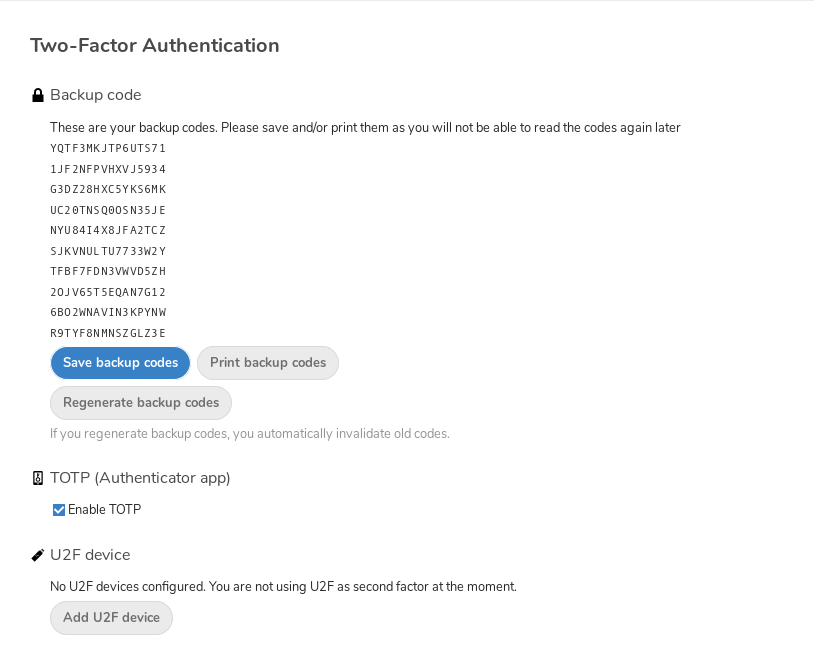
Store these codes somewhere safe where you can find them. Do not keep them with your second factor (such as your mobile phone), but store them separately so that losing one does not mean losing the other.
Logging in with two-factor authentication
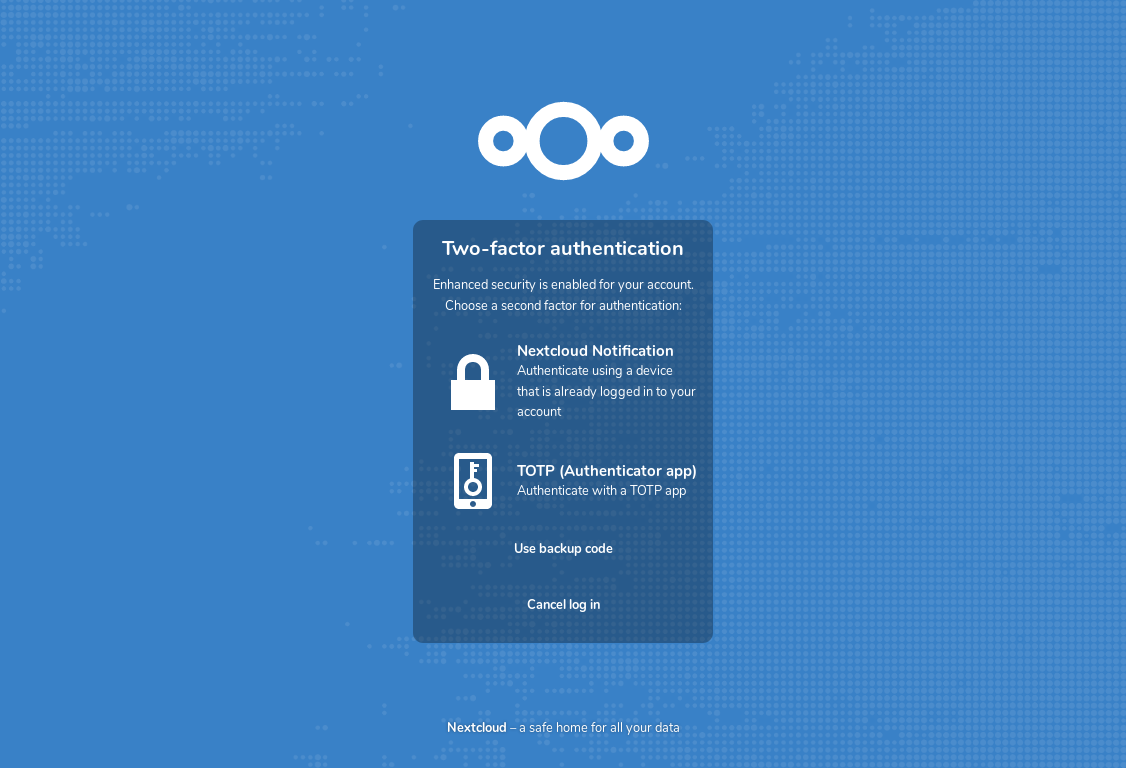
After you log out and log in again, you will see a prompt to enter the TOTP code in your browser. If you have enabled more than one second factor, you will see a selection screen where you can choose which method to use for this login. Select TOTP:
Now, just enter your code:
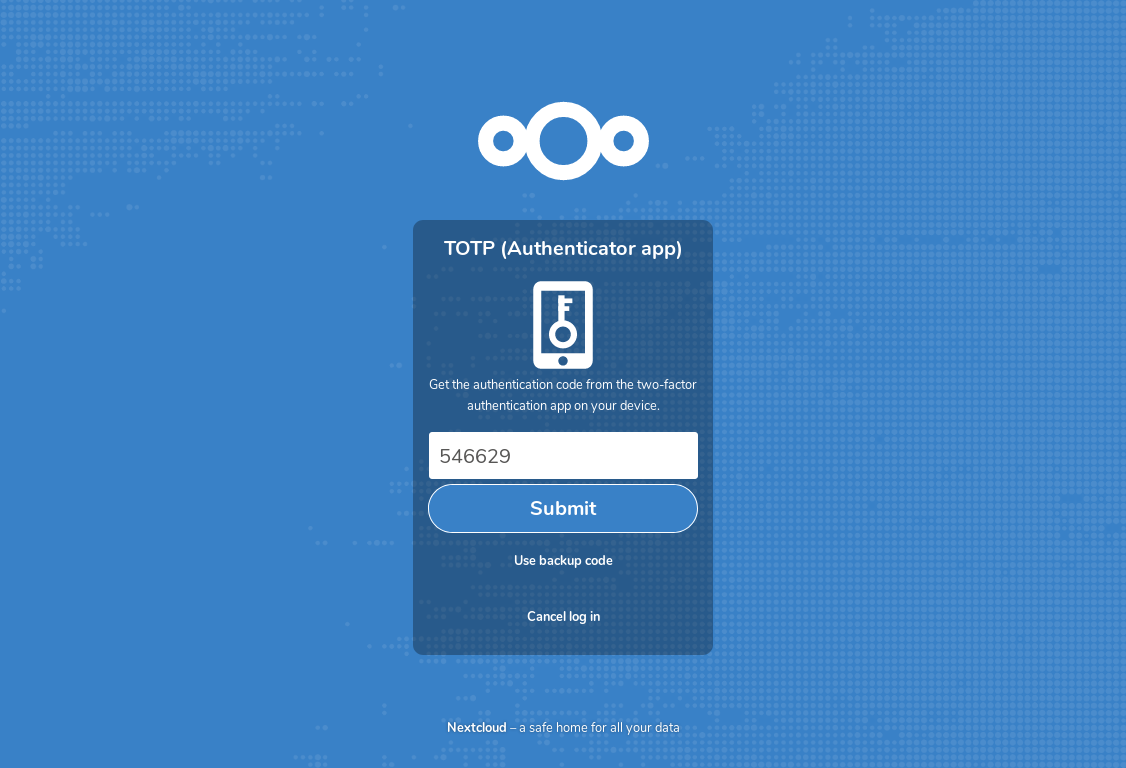
If the code was correct you will be redirected to your Nextcloud account.
Note
Since the code is time-based, it is important that your server’s and your smartphone’s clock are almost in sync. A time drift of a few seconds won’t be a problem.
Using two-factor authentication with hardware tokens
You can use two-factor authentication based on hardware tokens. The following devices are known to work:
TOTP based:
FIDO2 based:
Using client applications with two-factor authentication
Once you have enabled 2FA, your clients will no longer be able to connect with just your password unless they also have support for two-factor authentication. To solve this, you should generate device-specific passwords for them. See Manage connected browsers and devices for more information on how to do this.
Considerations
If you use WebAuthn to log in to your Nextcloud, be sure to not use the same token for 2FA, as this would mean you are again only using a single factor.